Downloaded macOS app verification before first launch
Use downloaded macOS app verification to check the publisher, checksum, signature, notarization, quarantine, and first launch permissions safely.
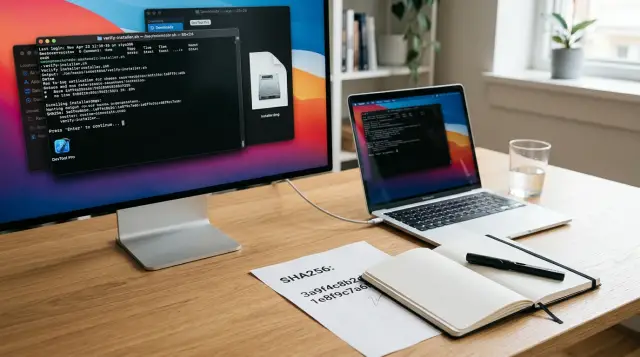
A security app gets unusual access by design. It may read network traffic, add a system extension, install a privileged helper, inspect files, or ask for screen recording and accessibility permissions. Treating its first launch like any ordinary app install is an avoidable mistake.
A proper review does not require reverse engineering the whole product. It requires checking that you obtained the intended artifact, that its publisher identity is the one you expected, that its contents still match the signed release, and that macOS accepts it under its normal protections. Do that before the app receives permissions, credentials, or an administrator password.
This review is deliberately repetitive. That is its strength. A one time ritual based on whatever warning macOS happens to show is easy to bypass. A short record of the same checks for every new security app is harder to fool and easier to hand to another engineer.
The file name is not the publisher
A file named Acme Security.app tells you almost nothing. A copied icon, a familiar product name, and a polished download page are cheap to imitate. The identity you need to establish is the identity encoded in the signature, then compare that identity against information you obtained separately from the publisher.
Start at the source. Prefer the publisher's own release page or a release location the publisher names in its documentation. Avoid download aggregators, file mirrors, and links passed through a chat thread when you can get the original release. If a colleague sends the file, ask where they obtained it instead of treating their possession as provenance.
There are two distinct questions here:
- Did this file arrive from the place I intended to use?
- Did the publisher who signed this executable match the publisher I intended to trust?
People often collapse those questions into one. That is how a compromised vendor download page can still pass a casual review, and how an app with a valid Apple Developer ID can gain trust merely because its name resembles a known vendor.
Build an expectation before inspecting the file. Record the app's product name, version, expected file type, publisher name, and any published Team Identifier or signing certificate details. If the vendor has never published a stable identifier, use several independent signals: its documentation, its source repository, an earlier release you already trust, and a support response from a known contact. A certificate subject line by itself is not enough when you have no prior reason to associate it with the vendor.
For an app that claims to guard other software, I expect the publisher to make this easy. A vendor asking you to disable Gatekeeper, run a curl pipe into a shell, or ignore a mismatch without a precise explanation has already failed the installation review.
Verify the delivery artifact before opening it
Check the downloaded container before you drag an app to Applications or run an installer. The container determines which commands matter and what can happen next.
A .dmg is a disk image. Mounting it exposes its contents but should not itself start the contained app. A .pkg is an installer package and can make system changes once you authorize Installer. A .zip is an archive that usually expands into an app bundle or another container. A bare .app is already an application bundle.
Keep the original download untouched until the review ends. Finder often expands ZIP files automatically, which is convenient but makes it easier to lose track of the exact artifact whose hash the vendor published. If the publisher provides a SHA-256 checksum for the ZIP, verify the ZIP before extraction. If it provides a checksum for the disk image, verify the disk image before mounting it.
In Terminal, use a fully quoted path. Dragging a file from Finder into Terminal inserts that path safely.
shasum -a 256 "$HOME/Downloads/VendorSecurity.dmg"
The output has this shape:
9fd1...e84c /Users/you/Downloads/VendorSecurity.dmg
Compare all 64 hexadecimal characters with the publisher's value. Do not compare the first few characters and call it done.
A checksum is strong evidence only when you obtain the expected digest through a different path from the downloaded file. The best simple arrangement is an installer from the vendor's release page and a checksum in a signed release note, a source repository release, or a separately maintained security page. A hash printed immediately beside the download button still catches accidental corruption, but it does not protect you if an attacker controls that page and the file.
If the vendor publishes no checksum, do not invent certainty. Continue with the signature and notarization checks, and give more weight to publisher verification. If an app is high consequence for your environment, ask the vendor for a signed digest or a release manifest. That is a reasonable request.
For a disk image, you can also ask macOS to validate its internal structure:
hdiutil verify "$HOME/Downloads/VendorSecurity.dmg"
A successful verification says the image structure and checksum blocks are internally consistent. It does not identify the publisher and it does not replace a vendor supplied SHA-256 digest.
A valid signature proves integrity, not judgment
Code signing answers a narrow and useful question: has the signed bundle changed since its signer approved it? It also exposes the signing chain and Team Identifier. It does not tell you whether the app is well designed, whether the publisher deserves your trust, or whether the app's requested access is sensible.
After you mount the disk image or expand the archive, inspect the app bundle directly. This command verifies the code signature and checks nested signed code inside the bundle:
codesign --verify --deep --strict --verbose=4 "/Volumes/Vendor Security/Vendor Security.app"
Success often produces little output. Terminal's exit status is the result, so a quiet return to the prompt after this command is normal. On failure, codesign identifies a changed file, an invalid signature, or a nested component that does not validate.
Then print the signing details:
codesign -dvvv "/Volumes/Vendor Security/Vendor Security.app" 2>&1 | \
  egrep "^(Identifier|TeamIdentifier|Authority|Timestamp)="
Expect output shaped roughly like this:
Identifier=com.vendor.security
TeamIdentifier=ABCDE12345
Authority=Developer ID Application: Vendor, Inc. (ABCDE12345)
Authority=Developer ID Certification Authority
Authority=Apple Root CA
Timestamp=Jan 16, 2026 at 14:32:09
The actual vendor name, bundle identifier, and Team Identifier must match your expectation. Write down the Team Identifier. It is much more stable and discriminating than an app icon or a display name, and it gives you something concrete to compare when the vendor ships an update.
Do not overread the word Authority. A Developer ID signature means Apple issued the certificate to a registered developer and the code validates against that chain. It does not mean Apple recommends the product. Apple's own documentation is clear on the related distinction: notarization is an automated malware and signing check, not App Review.
Apple's code signing guidance also warns developers not to use codesign --deep to sign complex software because it applies options too broadly. That warning concerns creating signatures. For a user performing a verification pass, --deep is useful because it asks codesign to validate nested code. It still does not inspect every script or configuration file for bad intent.
If the app contains a helper, a command line tool, or an extension, the bundle verification is the first pass, not the last word. The first launch review later in this article is where you compare those components against what the app says it needs.
Gatekeeper assessment checks the release macOS will run
Run a Gatekeeper assessment against the app even when the signature looks correct. spctl evaluates the item against the system policy that matters at execution time. It is closer to the question, "Will this Mac accept this app under normal protections?"
Use:
spctl --assess --type execute --verbose=4 \
  "/Volumes/Vendor Security/Vendor Security.app"
A healthy result commonly includes lines like:
/Volumes/Vendor Security/Vendor Security.app: accepted
source=Notarized Developer ID
origin=Vendor, Inc. (ABCDE12345)
The exact wording varies by macOS release. What you want is an accepted assessment, a notarized Developer ID source when this is a direct download, and an origin you recognize.
This check catches a mistake that a checksum cannot catch: you may have downloaded an unmodified file from the wrong publisher. It also catches a different mistake that certificate inspection alone can miss: a validly signed app may not meet the current Gatekeeper policy.
Apple describes Gatekeeper as checking downloaded software for an identified developer, notarization, and alteration. That is a useful safety net, but it is still a policy assessment by the operating system. It should support your decision, not replace your decision about whether the publisher and the requested privileges make sense.
Do not suppress a failed assessment by stripping attributes or using a Finder override before you understand the reason. Preserve the failure text in your review notes. A revoked certificate, an expired or malformed signature, a missing notarization result, and an organization managed restriction require different responses. Treating every warning as a generic nuisance is how exceptions turn into a normal installation path.
A stapled ticket is helpful, but it is not the whole notarization check
Notarization and stapling are related but different. Notarization means Apple's notary service processed the submitted software and issued a ticket after its automated checks. Stapling attaches that ticket to an app, disk image, or installer package. Gatekeeper can also locate a ticket online.
If you have Xcode Command Line Tools installed, check whether a ticket is attached:
xcrun stapler validate "/Volumes/Vendor Security/Vendor Security.app"
A successful validation confirms that the ticket is physically attached to that bundle. It is helpful for a laptop that might first launch the app without a network connection.
Do not reject an app solely because this command says no ticket is stapled. Apple documents that Gatekeeper can find a notarization ticket online, including for a user who downloaded the app before notarization completed. A ZIP archive also cannot carry a stapled ticket itself. The publisher must staple the items inside it, then create a fresh archive.
Use the checks in the right order:
- Verify the SHA-256 digest when an independently published digest exists.
- Verify the app signature and inspect its Team Identifier.
- Run the Gatekeeper assessment.
- Validate a stapled ticket if the tool is available and offline first launch matters.
Keep the Mac online for the first normal launch unless the publisher explicitly documents an offline deployment process. This lets Gatekeeper perform its normal online lookups, including certificate status checks. Do not interpret a stapled ticket as a promise that the app will always remain acceptable if its signing identity is later revoked.
Notarization has limits worth stating plainly. It is not a complete audit of an app's behavior. It does not confirm that an app's cloud service handles data safely, that its update system is sound, or that a new version will request only reasonable permissions. It tells you that the submitted artifact passed Apple's automated process and gives Gatekeeper a ticket to work with.
Quarantine is evidence about origin, so leave it in place
The com.apple.quarantine extended attribute records that macOS received an item through a channel that marked it as downloaded or transferred. It helps Gatekeeper know that this is a first run event worth checking. It is not a malware label.
Inspect the attributes with:
xattr -l "/Volumes/Vendor Security/Vendor Security.app"
For a downloaded item, you may see output containing:
com.apple.quarantine: 0083;...;Safari;...
The flags and timestamp format are implementation details. The useful conclusion is that the item retains download provenance. An app with this attribute is not suspicious merely because it has it. Most browser downloads should have it.
The absence of quarantine does not make an app safe either. Files can lose extended attributes when they move through archive tools, network shares, removable media, or a colleague's copy operation. Apple also states that macOS checks software for known malicious content at first open regardless of how it arrived. In practice, preserving provenance still gives Gatekeeper and your review process better context.
The popular fix for an app that will not open is this:
xattr -dr com.apple.quarantine "/Applications/Vendor Security.app"
Do not make that part of a normal installation procedure. It removes a control signal because you dislike the result of the control. It does not repair a broken signature, establish publisher identity, or make an unnotarized app safer. If a vendor's published instructions require that command, stop and find out why it cannot ship a release that Gatekeeper accepts.
A managed Mac may enforce stricter rules through device management. In that case, an override may be unavailable or prohibited for good reason. Ask the administrator for the policy path instead of treating the restriction as a technical puzzle.
Packages need their own inspection before Installer gets a password
A .pkg deserves more suspicion than an app bundle because Apple's Installer can write outside your user folder after you authorize it. Security products sometimes need packages to install a privileged helper, a system extension, a network filter, or supporting components. That may be legitimate. It is still a consequential action.
Check a package's signing information before double clicking it:
pkgutil --check-signature "$HOME/Downloads/VendorSecurity.pkg"
A typical result identifies the package's signed status, the Developer ID Installer certificate, and the certificate chain. Compare the vendor name and Team Identifier where available with the identity you recorded for the app or with the vendor's published installation material.
Then ask Gatekeeper to assess the package as an installer:
spctl --assess --type install --verbose=4 \
  "$HOME/Downloads/VendorSecurity.pkg"
Do not substitute an app assessment for a package assessment. They are different artifacts, signed under different certificate types in many releases, and they have different consequences when opened.
Before you enter an administrator password, identify what the installer claims to add. A decent vendor explains whether it installs a privileged helper, a system extension, a login item, a configuration profile, or a network component. Vague language such as "required system access" is insufficient for software that asks to control security relevant parts of the Mac.
If the package installs an app as well, inspect the installed app before launching it. A signed package can legitimately contain an app bundle, and the package's signature does not remove the need to verify that bundle's execution signature.
First launch is an approval review, not a race to click Allow
After the artifact passes the checks, move the app to its intended location and launch it normally while you are present. Keep the original download and your recorded outputs until the app has completed its initial setup. Do not begin by granting every prompt because the app is called a security product.
Read each macOS prompt as a statement of what the app wants to do. Typical requests include Notifications, Full Disk Access, Accessibility, Screen Recording, network filtering, a system extension, or an administrator approved helper. Each request should have a concrete connection to the product's job.
For example, a network inspection app may reasonably request a network extension. A credential action gateway may need permission to manage its own vault and connect to named services, but it should not need universal screen recording to do that. A disk scanner may need Full Disk Access, but it should explain what it reads and what remains local. The product category does not grant a blank check.
Use this short first launch review:
- Match every prompt to a documented function you actually plan to use.
- Stop when a request is unexpected, then inspect the vendor's documentation before approving it.
- Refuse administrator credentials until you know the name and purpose of the component being installed.
- Check System Settings after setup for newly enabled Login Items, profiles, extensions, or background items.
- Record the app version, Team Identifier, download hash, and permission decisions with the release record.
The second and third bullets matter because the most expensive approval is often not an app permission. It is an administrator approved component that persists beyond the app's window and can act with more access than the app itself.
For a team deployment, put this review into a simple intake document. Include the source location, date, file hash, signing identity, Gatekeeper result, notarization result, installed components, permissions approved, and reviewer name. That record makes a later update review much quicker. It also exposes a surprising signing identity change before it reaches every developer laptop.
Do not confuse a clean install with a trusted operating model
A clean signature, an accepted Gatekeeper assessment, and a reasonable permission set make a good starting point. They do not prove that the app will make safe choices after launch. You still need to evaluate where it stores secrets, how it authenticates updates, what it sends off the Mac, and whether a compromised process can abuse its privileges.
For agent facing security tools, insist on a boundary that survives an agent mistake. The agent should not receive reusable credentials merely because it needs to perform an action. It should request the action through a local control point that can require human approval and retain an audit trail.
That is the installation standard I apply to Sallyport as well: verify the signed release first, then evaluate its actual boundary. Sallyport keeps credentials in its encrypted vault and performs approved HTTP or SSH actions itself, rather than passing secrets into an agent process.
The useful habit is simple: do not let an app earn broad authority merely by being labeled security software. Make it show its publisher identity, its unmodified contents, its Gatekeeper status, and the exact access it wants. If it cannot survive that review, it has no business receiving the permissions that make a security app powerful.
FAQ
Is notarization enough to trust a macOS security app?
A downloaded macOS app can be signed, notarized, and still be the wrong product or an unwanted version. Confirm the publisher, the file hash when the publisher supplies one independently, the signature identity, and the installer type before you launch it.
How do I verify a SHA-256 checksum on macOS?
Use shasum -a 256 on the exact file you downloaded, then compare the complete digest against a value published somewhere other than the download page. A checksum copied from the same compromised page does not give you an independent check.
What is the difference between codesign and spctl?
codesign checks whether the signed code has changed and identifies the signing certificate. spctl asks whether macOS policy accepts that item for execution or installation, including its assessment of Developer ID and notarization.
Does a failed stapler validate command mean an app is unsafe?
No. It means the item has no attached notarization ticket. Gatekeeper can retrieve a valid ticket online, so use spctl --assess as the practical acceptance check and keep the Mac connected during the first launch.
What does com.apple.quarantine mean on a Mac?
Usually it means the file came from a browser, AirDrop, Mail, or another source that marked it as downloaded. The attribute is provenance, not malware evidence. Do not remove it merely to make a warning disappear.
Should I run a downloaded security app with sudo?
Do not use sudo for an app's first launch. A legitimate security product may later need an administrator approved helper or system extension, but you should identify that request, verify who signed it, and decide whether it matches the product's documented job.
How do I inspect a downloaded PKG installer on macOS?
For a package, run pkgutil --check-signature and spctl --assess --type install --verbose=4 before running Installer. A package can write files with administrator approval, so treat it as a different and higher consequence artifact than an app bundle.
How can I tell whether a macOS app really came from its publisher?
The name needs to match an identity you can independently recognize, such as the vendor's legal name, documented Developer ID details, an established source repository, or prior releases. A familiar looking app name in Finder proves nothing about who signed the executable.
Will macOS detect if someone changes an app after it is signed?
The signature normally breaks, and codesign --verify --deep --strict should report an error. That tells you the bundle differs from what its signer approved; it does not tell you whether the original signer made good software.
What should I record when I approve a new macOS security tool?
Keep a small record containing the source page, download date, version, SHA-256 digest, Team Identifier, and assessment output. That record makes the next upgrade faster and gives your team something concrete to compare when a vendor changes signing identities.